
11 Tips for Improving Productivity using OneNote
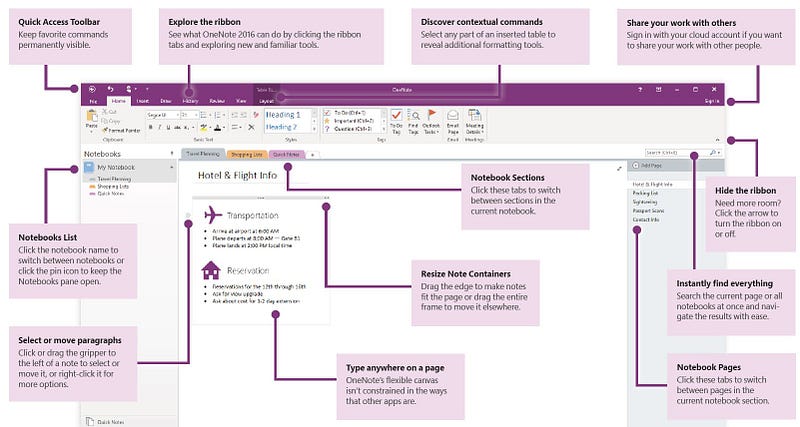
What’s OneNote?
OneNote is a digital notebook that automatically backs up to Microsoft’s Office 365 cloud. Microsoft has developed apps for every device including Windows PC, Mac,iPhone, Android. OneNote notebooks can be shared with colleagues for real-time collaboration.
Why OneNote?
OneNote allows you to capture just about anything. Type notes, record audio, create a quick sketch, add pictures, videos, and any other document. Then organize everything into notebooks, sections, and pages. OneNote can be as structured or as unstructured as you want it to be. And because all your notes are in the cloud, OneNote lets you switch devices and pick up right where you left off.
Last but certainly not least, integration! You can take note in OneNote while on a phone call, quickly add check-boxes turning the notes into a to-do list. Then, add an Outlook flag to remind you to follow up later. Or link an Outlook calendar appointment to a OneNote page and share the notes to everyone in the meeting. The possibilities are endless.
1. Create a Quick Note
How often does this happen? You’re out to lunch and remember you need to call a customer and follow up on your last meeting. Quick notes are perfect for capturing a thought on one device, such as your phone then retrieving it from another device, such as your computer when you’re in the office.
Use Quick Notes to jot down any thoughts and ideas, just like sticky notes. Each Quick Note is instantly saved as a page in the Unfiled Notes section of the Quick Notes notebook.
Quick Notes are the electronic equivalent of little yellow sticky notes. When you create a Quick Note, it’s saved immediately as a section in <your name> Notebook. OneNote uses both the Quick Notes and <your name> Notebook to sync your notes to OneDrive. For this reason, don’t rename the <your name> Notebook or the Quick Notes section.
How to create a quick note on smartphones
The following instructions are for an Android smartphone but are similar on the iPhone. If you have any difficulty with your iPhone please let me know if the comments and I’ll write up instructions.
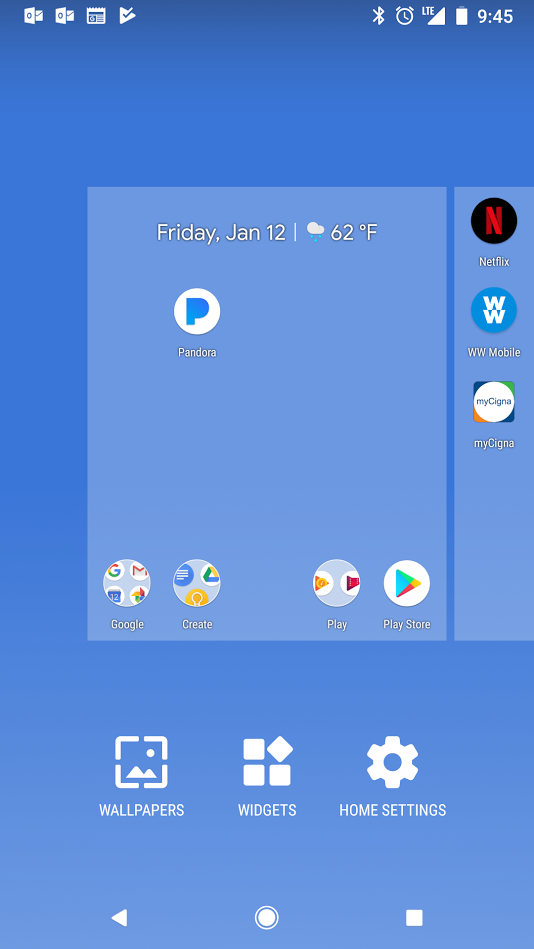
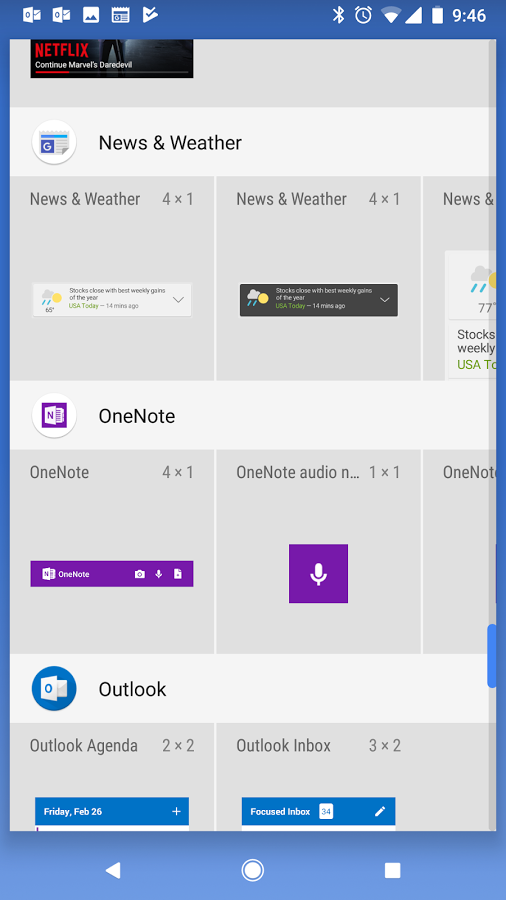
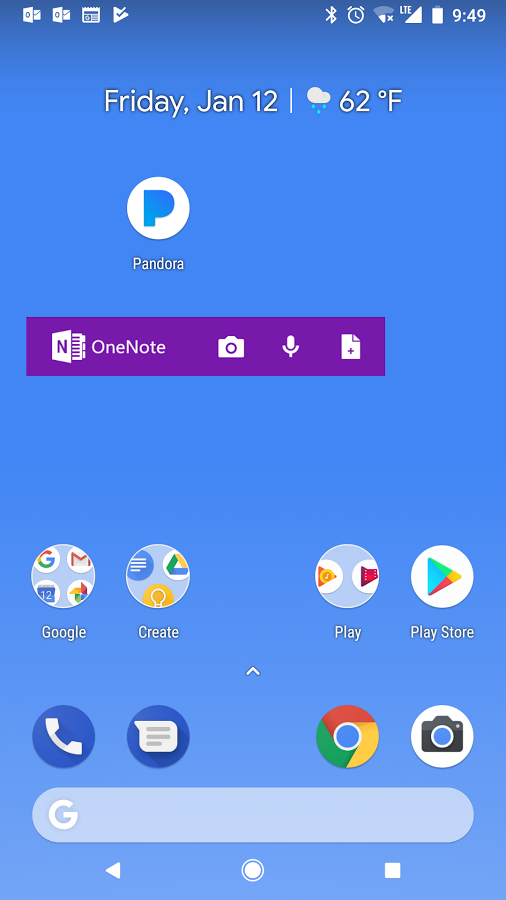
Once you download the OneNote Android app and log in to your Office 365 account you can begin using OneNote on your smartphone anytime, anywhere. OneNote for Android has widgets for creating a new text note, audio note, and picture note. To use any of these widgets, simply tap and drag them to your phone’s home screen.
From your Android home screen, tap and hold until the management view appears. Click WIDGETS.
Scroll down until you find the OneNote app. Scroll through the different widgets and add them to your home screen!
How to create a quick note from Windows 10
Quick notes are located in the bottom right corner. The icon will look like the OneNote symbol plus scissors.
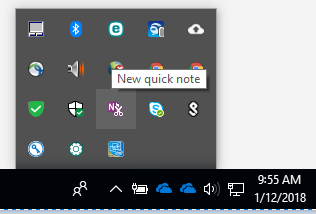
How to access your quick notes
- Open OneNote and click Quick Notes.
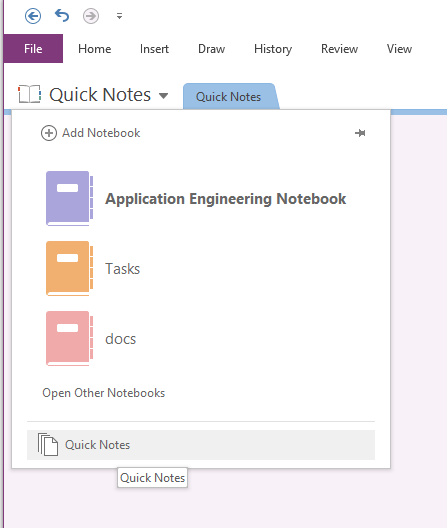
2. Search across all of your notes
The more you use OneNote the more content you’ll store. It can quickly become your go-to place for everything and anything. The structure of OneNote has unlimited options. If you’re like me, you’ll quickly forget where you stored things! Luckily the built-in search is fantastic.
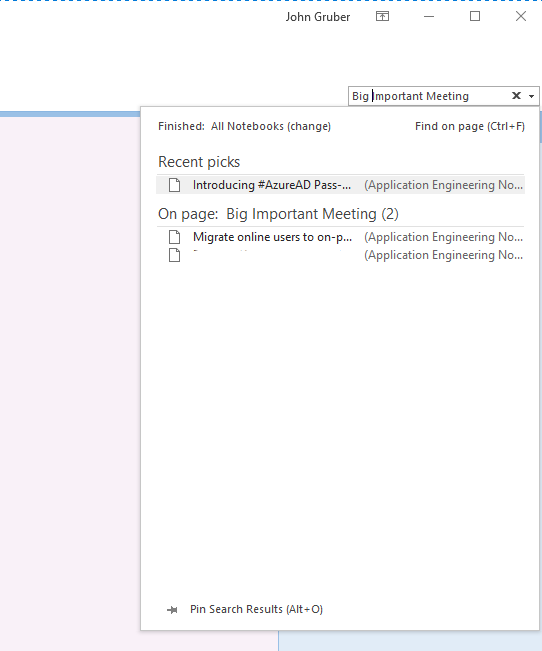
OneNote can help you find notes no matter where they are. To find notes, select the magnifying glass or press Ctrl+F and type a search word or phrase. OneNote searches typed text, handwritten notes, and even words shown in pictures. If you want to narrow the search, select the drop-down arrow and choose an option. And OneNote highlights the search words in pictures and in notes. When you’re done, select the X to close the search results.
With OneNote, find your notes wherever they are.
3. Share your notebook and collaborate in real-time
OneNote’s possibilities don’t end with shopping lists and personal to-do lists. In today’s day in age, teams need to collaborate in real-time, from anywhere. OneNote notebooks can be used to keep projects organized, share notes about clients with your team, share the highlights and action items from meetings, and provide an internal Wiki to store processes.
You can invite people to see your notebook with an email message generated by OneNote. Only people who are invited will be able to open your notebook.
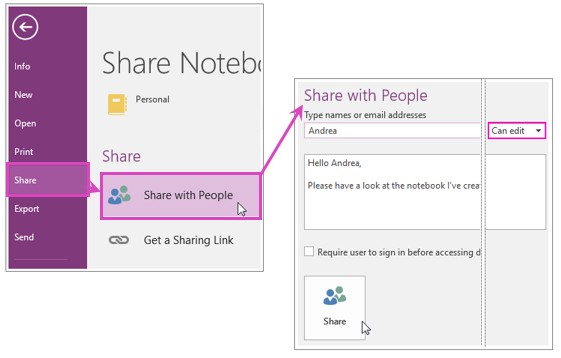
- Choose File > Share.
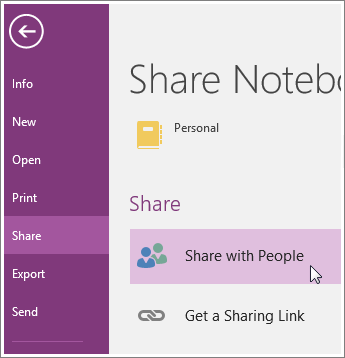
2. Under Share with People, type the names or email addresses of people you’d like to share your notebook with.
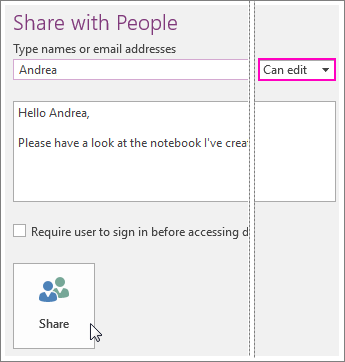
3. In the drop-down box on the right, choose whether each person can edit or just view your notebook.
4. Add a personal note, if you’d like, and choose Share. The people you’ve selected will get an email invitation to open your notebook.
4. Draw and hand write notes for clarity
Sometimes computers can get in the way. Until I started using OneNote I kept a pen and paper on my desk at all times. It was easy to jot quick notes from a phone call, make a quick drawing to capture a complex idea or circle important things. In OneNote, you can type notes, write notes, convert handwritten notes to text, and even draw directly on the page.
From any OneNote page select the Draw tab in the ribbon and click your desired pen.
5. Use tags to categorize and prioritize notes
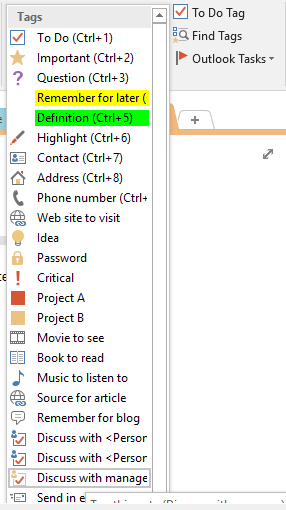
Tags are a way to categorize and prioritize notes in OneNote 2016. With tags, you can quickly return to important items, remind yourself about action items, or filter on notes you’d like to share with others. You can tag anything from a single line of text to an entire paragraph.
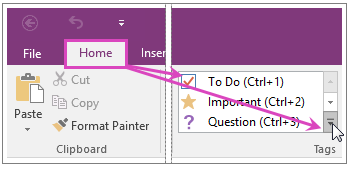
Tips: When you’re done with a tagged note, you can remove the tag so it doesn’t show up in tagged notes search results.
- To remove a single tag, right-click it, and click Remove Tag.
- To remove multiple tags, select all of the text containing the tags you want to remove, and then press CTRL+0 (ZERO).
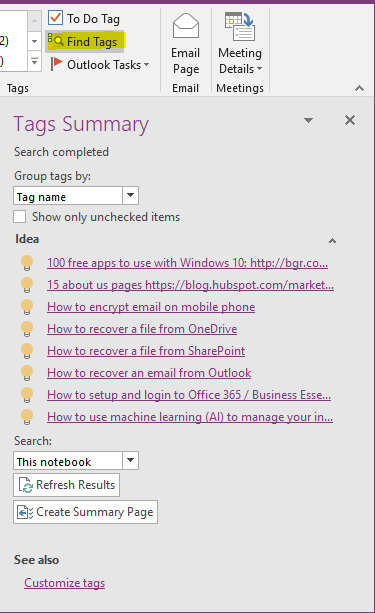
If you’ve previously added tags to any of your notes, you can search for the tags by using tag keywords. In OneNote 2016, the results appear in an easy-to-read summary. If you want to view the tag search results as a notes page, click the “Create Summary Page” button at the bottom of the Tags Summary task pane.
6. Integrate OneNote with Outlook Flags
Now, we’re getting to OneNote’s true potential! As you take notes and plan projects in OneNote, you might wonder how to manage deadlines and remember the things on your to-do list. One way is to create Outlook tasks. Then you can view and track those tasks in Outlook and even get reminders.
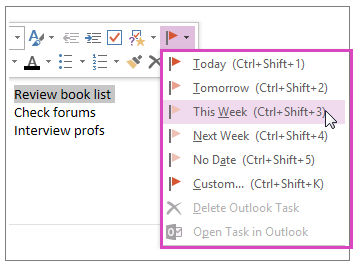
You can also:
- Find a task in OneNote.
- Mark a task as complete.
- Delete a task.
OneNote and Outlook work together in other ways too. For example, you can manage meeting details and send notes in an email message.
7. Password-Protect your Notes
Password protection in OneNote is designed to help keep your notes safe from prying eyes. Whether you use OneNote for class notes at school, meeting notes at work, a personal diary or blog at home or personal information about yourself or your friends and family, passwords play a crucial part in controlling access to those notes.
You can help keep your private notes safe from prying eyes by protecting a OneNote notebook section with a password. When a section is password-protected, all of its pages are locked until you enter the correct password.
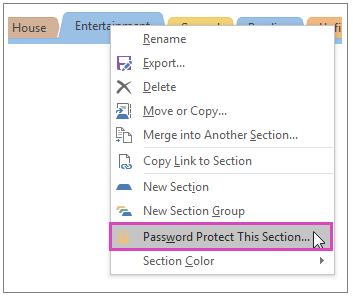
Note: Choose your password carefully. If you forget your password, no one will be able to unlock your notes for you (not even Microsoft Technical Support).
You can also:
- Lock the protected sections in your notebook.
- Change the password for a protected section.
- Remove the password from a protected section.
- Set various password protection options.
- See OneNote 2016 Help (F1).
8. Create & Use Page Templates
In OneNote, a template is a page design that you can apply to new pages in your notebook to give them an appealing background, a more uniform appearance, or a consistent layout.
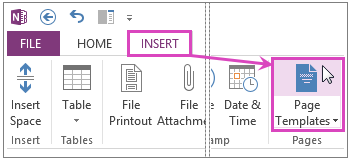
OneNote comes with several built-in page templates that you can choose from, including decorative page backgrounds, planners, and To Do lists. If you’d like, you can also create your own page template or customize an existing one.
Note: Many template designs include content that appears in specific places on the page. For this reason, templates in OneNote can only be applied to new pages that don’t already contain any notes. If you want to apply a template to a page that already contains notes, first create a new page from the template you want, and then copy your existing notes over to it.
9. Organize Pages with Subpages
Subpages are a good way to group and organize notes. For example, if you have annual and monthly meeting notes, the annual meeting notes can be the main page and you can demote the monthly meeting notes so they become subpages.
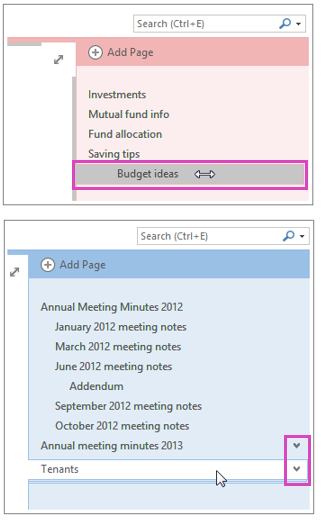
If you have a lot of notebooks and pages and notice that it’s getting harder to find what you’re looking for, you can search notes and navigate results. Another way to stay efficient is by organizing your notebooks, sections, and pages.
When you move a page that has subpages, the group moves together if the subpages are collapsed. If you want to move a single subpage, promote it to a page by dragging it to the left, and then click and drag the page up or down to the location you want.
10. Use OneNote as a Team Wiki
If you’d like to share your notebook with other people, make sure you create your OneNote 2016 notebook on OneDrive so others can get to it. If you’ve already created a notebook on your computer, first move it to OneDrive. Just because your notebook is on OneDrive doesn’t mean people can automatically see it. It’s available to you on all your devices. You’ll have to deliberately share it with others before anyone else can see it.
- You can generate a link to your notebook so others can view or edit it (File tab > Share > Get a Sharing Link). If someone forwards the link to another person, they will also be able to see your notebook.
- If you ever change your mind, you can change permissions or stop sharing your notebook. It will still be on OneDrive so you can get to it on all your devices.
Thanks to OneNote tags, and search capability it becomes a great place to use as a team wiki. When shared from OneDrive or SharePoint it becomes available offline too. I recommend a SharePoint Online site for teams of ten or more.
Tips:
- Follow a specific structure. Your first OneNote page should tell users how to use and update the OneNote.
- Use Tags properly. They make it easy to find to-do lists, etc.
- Chose an organization structure. At TierPoint, we group our notes by application/technology. Make OneNote work for you, not the other way around.
11. Manage Projects Through OneNote
I manage a lot of projects through OneNote. I keep specific structures, templates, and notes for quick reuse. Here’s my structure:
Create a section for every ongoing project. Name the section with the project name. Create a section group called Closed. When a project is completed, move it to the closed section.
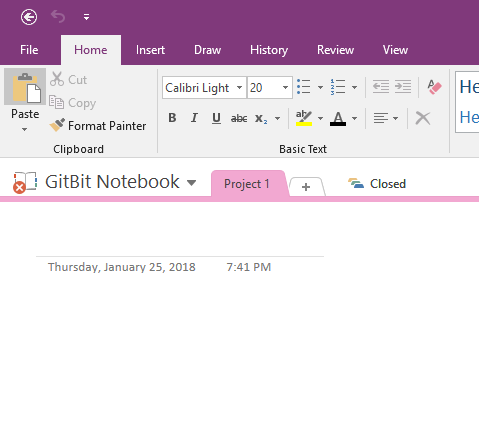
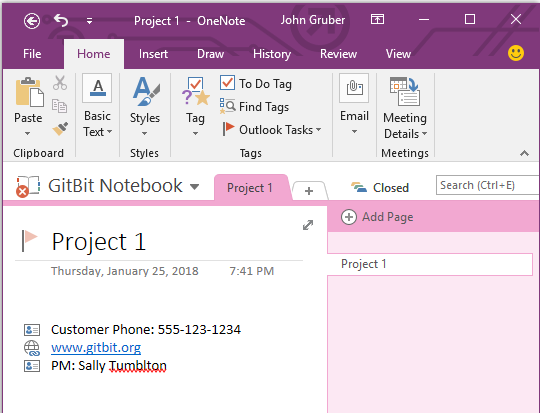
The first page is always named the project name. It’s a summary and where to keep important information I have to refer to often. Flag the title of the page so the project will show up in your Outlook To-do list.
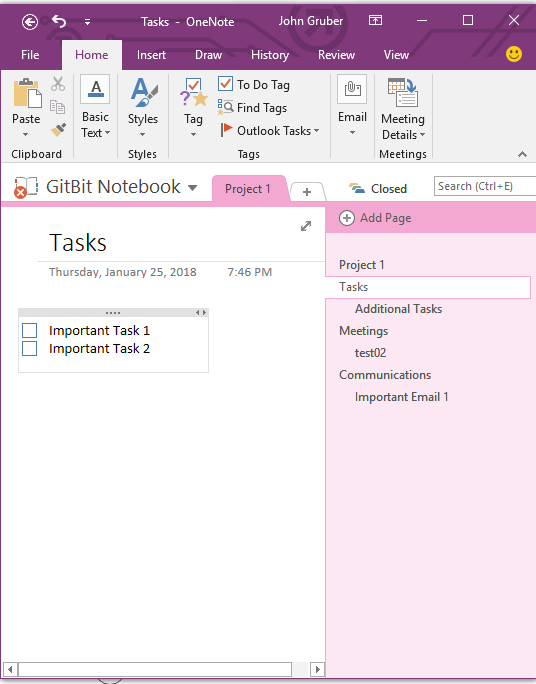
Then I create a page for Tasks. This list will typically be a list of things I have to do for every project like this. I’ll create subpages with additional tasks. These are special things I need to complete for this particular project. I also create a meeting notes section. Every meeting I create a subpage with the notes from the meeting. Lastly, I’ll create a Communications section where I dump important memos and emails that I’ll need to reference later.
That’s about it. I utilize Outlook integration heavily.
Thank you for taking the time to read my article. I hope you found it beneficial. If you have any questions or feedback, please don’t hesitate to reach out.
👉The Better Humans publication is a part of a network of personal development tools. For daily inspiration and insight, subscribe to our newsletter, and for your most important goals, find a personal coach.👈


