
# 1 Unlocking AI Creativity without “Coding”: A Beginner’s Guide to Flowise
Flowise AI Tutorial #1 — Introduction & Setup
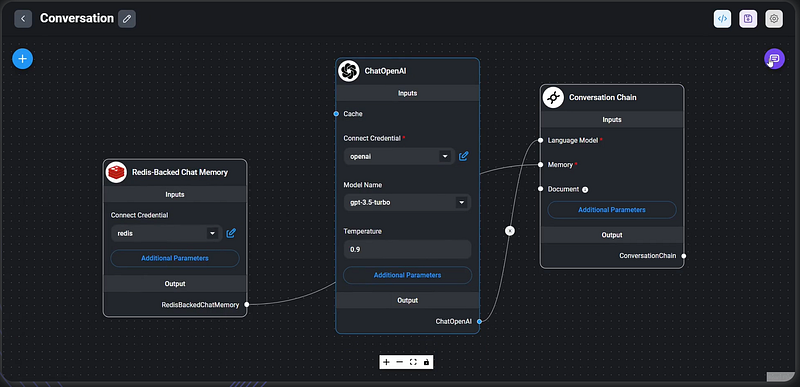
Welcome back to our tech-focused blog, where today we’re diving into an exciting tool that’s making waves in the world of AI and application development: Flowise. As someone with a background in data science and a passion for making technology accessible, I’m thrilled to introduce you to this game-changer. Flowise is an open-source platform that simplifies the process of prototyping Lang chain applications, offering an intuitive, user-friendly interface that doesn’t require any coding experience. Whether you’re a seasoned developer or a curious beginner, Flowise is designed to empower you to create AI applications with ease.
What is Flowise?
Flowise stands out by allowing users to build AI applications through a straightforward drag-and-drop interface. It’s a tool that democratizes the development of AI applications, making it free and easy to run locally on your machine or deploy on a web server for broader access. This means you can prototype Lang chain applications before writing a single line of code, and even expose API endpoints for direct interaction with your Flowise flows.
Getting Started with Flowise
To kick things off with Flowise, you don’t need any coding knowledge. However, you will need Node.js installed on your machine. Simply head over to Node.js and download the LTS version.
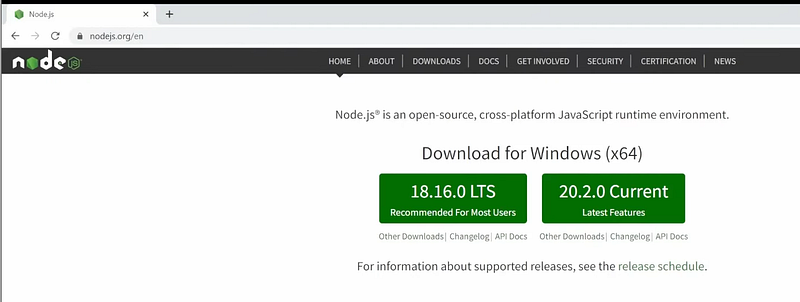
Once installed, open your command prompt and enter the following command for a global installation:
npm install -g flowwise
After installation, you can start Flowise by typing npx flowwise start in your command prompt. If everything is set up correctly, you'll see a message indicating that the Flowise server is listening on port 3000. Access Flowise by typing localhost:3000 in your browser, and you'll be greeted with the Flowise dashboard.
To make easy life here is the bat file for Windows user:
@echo off
cd /d "C:\"
start "" "http://localhost:3000"
npx flowise start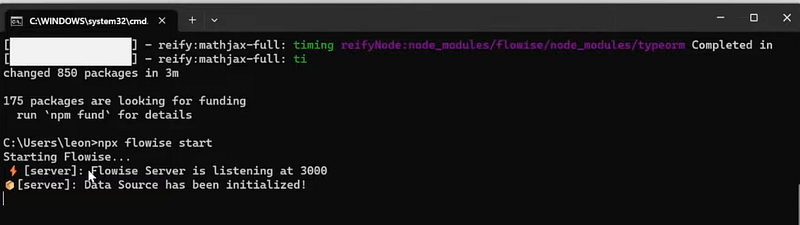
Creating Your First AI Application
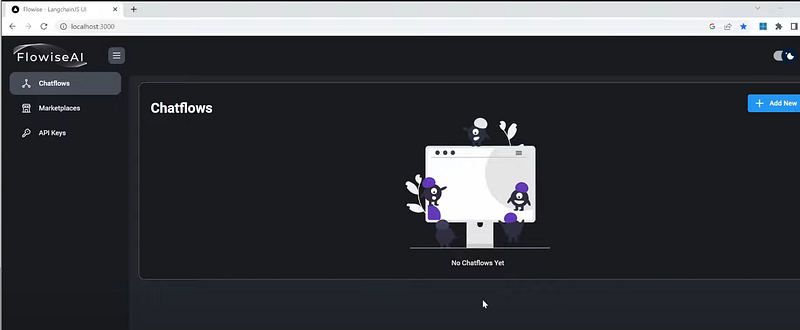
The dashboard offers a clean slate for you to create new AI applications. With a variety of nodes available, including agents, chains, chat models, and document loaders, you can start building your application by simply dragging and dropping components. If you’re curious about OpenAI components, a quick search within Flowise reveals a range of options, from chat models to other OpenAI utilities.
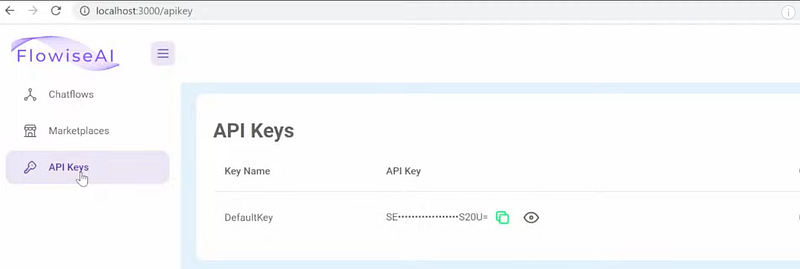
Flowise also includes a feature to save your work, adjust settings, and interact with your application through a chat interface. The platform supports both dark and light modes, and you can manage your chat flows, access the Marketplace for pre-built examples, and manage API keys all from the dashboard.
Example: Building a Translator Chatbot
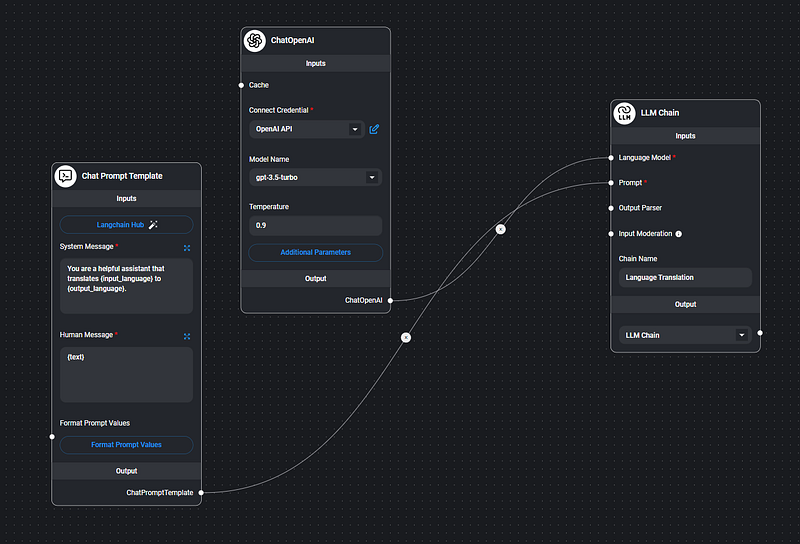
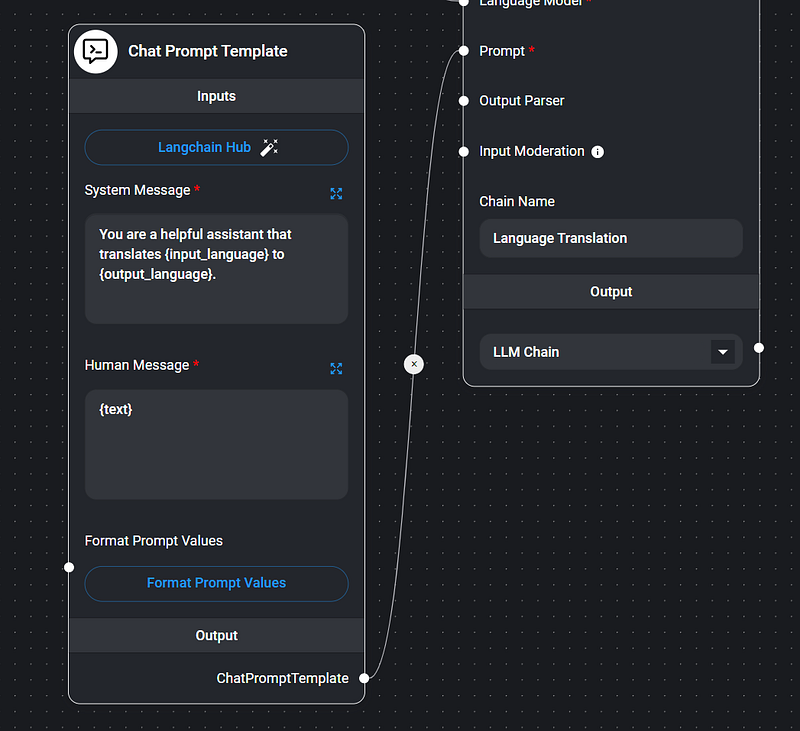
As a practical example, let’s explore how to create a translator chatbot using a template from the Marketplace. This project involves linking an OpenAI model to a prompt template, setting up variables for input and output languages, and configuring the model parameters. You’ll learn how to save and test your chat flow, ensuring your AI application functions as intended.
Exposing Your AI Application
One of Flowise’s powerful features is the ability to expose your models or chat flows to external applications via API keys. This tutorial series will guide you through generating and using an OpenAI API key to bring your creations to life outside of Flowise.
Conclusion
Flowise is a revolutionary tool that lowers the barrier to entry for creating AI applications. By following this tutorial, you’ve taken the first step toward unleashing the potential of AI in your projects without needing to code. Stay tuned for the next video, where we’ll delve into creating chat flows from scratch. If you’re interested in exploring specific components within Flowise, let me know in the comments!
Thank you for joining me on this journey into the world of AI application development with Flowise. Don’t forget to subscribe for more content like this, and I’ll see you in the next tutorial. Happy prototyping!


