
Day 3: Understanding the Linux Filesystem
Hi Mate !👋 Welcome to Day-3 of 90 days DevOps — series, in this blog we will discuss about file system of linux.
The Linux filesystem is one of the most crucial aspects of the operating system. It provides the structure that Linux uses to store and manage files, directories, and data. The Linux filesystem follows the Filesystem Hierarchy Standard (FHS), which defines a standard directory layout that all Linux distributions adhere to. This ensures that users and applications can interact with files in a consistent manner across various distributions.
In this guide, we’ll delve deep into the structure, components, and important directories of the Linux filesystem, providing a clear understanding of how data is organized and accessed.
1. Filesystem Basics ⁉️
A filesystem in Linux refers to how files are named, stored, and retrieved. It defines:
- File: A collection of data, which could be plain text, code, images, or other data types.
- Directory (or Folder): A container for files and other directories.
- Mounting: The process of making a filesystem accessible at a certain point in the directory tree (a “mount point”).
Unlike Windows, which uses drive letters like C:, Linux doesn’t use letters to designate drives. Instead, all drives and partitions are mounted into a single unified directory tree, starting from the root directory (/).
2. The Root Directory (/)🧠
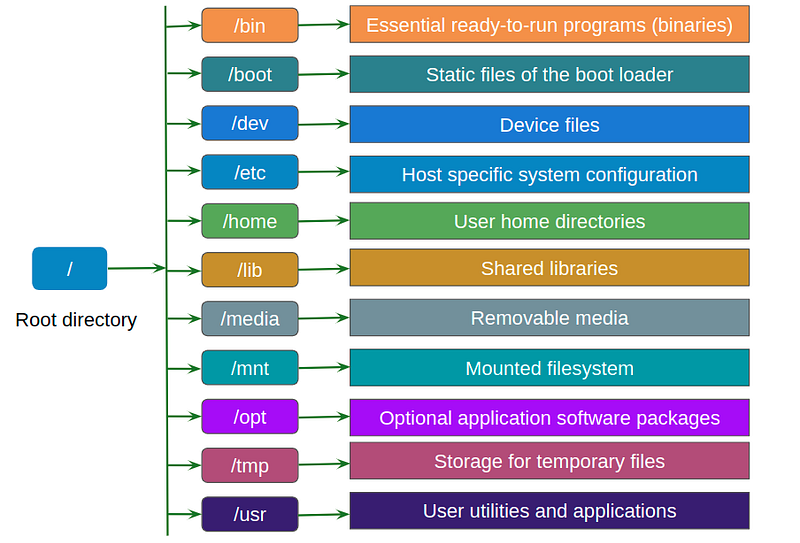
The root directory (/) is the top-most directory of the filesystem hierarchy. Everything on your Linux system is located under this directory, including files, programs, system libraries, and user data.
From here, a series of standard directories branch off, each serving a specific purpose. Below is a breakdown of the most important directories under the root.
3. Important Directories in the Linux Filesystem
/bin – Essential User Binaries
- Contains essential command binaries (programs) that are needed for the system to boot and run in single-user mode. These binaries are available to all users.
- Examples:
ls,cat,mkdir,bash.
/sbin – System Binaries
- Contains essential binaries for system administration. These are programs typically used by the root user for system maintenance and repair.
- Examples:
iptables,reboot,shutdown,mount,fsck.
/etc – Configuration Files
- This directory contains all system-wide configuration files and shell scripts for starting or stopping system services.
- Examples:
/etc/passwd(user account information),/etc/fstab(filesystems and mount points).
/dev – Device Files
- Contains device files that represent hardware and virtual devices on your system. In Linux, devices like hard drives, USBs, and terminals are treated as files.
- Examples:
/dev/sda1(first partition on the first hard drive),/dev/tty1(terminal device).
/lib – Essential Shared Libraries
- Contains shared libraries needed by the binaries in
/binand/sbin. These libraries are somewhat similar to DLL files in Windows. - Example:
/lib/x86_64-linux-gnu/libc.so.6(standard C library).
/usr – User Binaries and Read-Only Data
- /usr stands for user system resources. It contains most user binaries, libraries, documentation, and other resources not needed for booting or system repair.
/usr/bin: Non-essential user command binaries (e.g., applications likegit,python)./usr/sbin: Non-essential system binaries used by administrators./usr/lib: Libraries for/usr/binand/usr/sbinbinaries./usr/share: Architecture-independent data like icons, documentation, and locales.
/home – User Home Directories
- This directory holds the personal directories for all users. Each user gets their own folder under
/home, where they can store files, documents, and configuration settings. - Example:
/home/username/(the home directory for the userusername).
/var – Variable Data Files
- /var stands for variable. It contains files that are expected to grow in size, such as logs, caches, and temporary files.
/var/log: Log files from services such assyslog,auth.log./var/lib: Persistent data for applications (like databases)./var/cache: Cache data for applications./var/tmp: Temporary files preserved between reboots.
/tmp – Temporary Files
- This directory is used for storing temporary files that are created by programs and processes. The contents of
/tmpare often cleared upon reboot. - Example: Applications might store temporary data in
/tmpduring operation.
/boot – Boot Loader Files🧩
- Contains all the files required for the boot process, including the Linux kernel, initial RAM disk image (
initrd), and the bootloader (like GRUB). - Example:
/boot/vmlinuz(the Linux kernel image).
/opt – Optional Software
- This directory is used for installing optional software packages. It’s often used for third-party or add-on software that doesn’t conform to the standard filesystem hierarchy.
- Example:
/opt/google(Google Chrome installation).
/root – Root User’s Home Directory
- This is the home directory for the root (superuser) account. It’s different from the
/homedirectory, which contains user-specific directories for non-root users.
/mnt and /media – Mount Points for External Devices
- /mnt is used to temporarily mount filesystems, such as external hard drives or network shares.
- /media is used to mount removable media such as USB drives, CDs, or DVDs.
- Example:
/media/usb(automatically created when a USB drive is mounted).
/proc – Process and Kernel Information
- This directory contains information about the running system and processes. It’s a virtual filesystem that provides an interface to the kernel.
- Example:
/proc/cpuinfo(information about the CPU),/proc/meminfo(information about system memory).
/sys – Kernel and System Information
- Like
/proc,/sysis a virtual filesystem that provides information about the system and allows interaction with kernel devices. - Example:
/sys/class/net/(network device information).
/run – Runtime Data
- Contains information about the running system, such as information for currently running services and daemons.
- Example:
/run/sshd.pid(stores the process ID of the SSH daemon).
4. Linux Filesystem Types🗃️
In Linux, several types of filesystems can be used depending on the specific use case:
- ext4 (Fourth Extended Filesystem):
- This is the most common filesystem in Linux today, providing good performance and reliability.
- Extends features from ext3 such as larger file sizes, better performance, and journaling (which helps in data recovery).
2. XFS:
- A high-performance filesystem used in enterprise environments. Known for scaling to large storage systems.
3. Btrfs:
- A modern filesystem that provides features like snapshots, subvolumes, and dynamic space allocation. It’s designed for scalability and advanced data management.
4. NFS (Network File System):
- Used for accessing files over a network. It allows different machines to share files as though they were on the local filesystem.
5. Swap:
- Not exactly a filesystem, but an area on the disk that Linux uses as virtual memory when the system’s RAM is fully utilized.
7. Filesystem Tools
Linux provides various tools for managing and interacting with filesystems:
- df: Displays disk space usage.
# View the filesystem in Human readble format
df -hT

# Veiw the directory structure
tree

# List the largest files in the directory
du -sh /var/log | sort -h- The
-hflag displays disk space in a human-readable format. - du: Shows the disk usage of files and directories.
Conclusion
Understanding the Linux filesystem is essential for effectively managing a Linux system. By mastering the structure and key directories, you can confidently navigate, configure, and manage both system-level and user-level files. Whether you’re administering a server, managing storage, or troubleshooting system issues, a strong grasp of the filesystem ensures you’re well-equipped to handle your Linux environment.


