
️Using WLS 2 and WSLg for development on Windows 11 (final part)
Now windows 11 supports running Linux GUI apps natively!
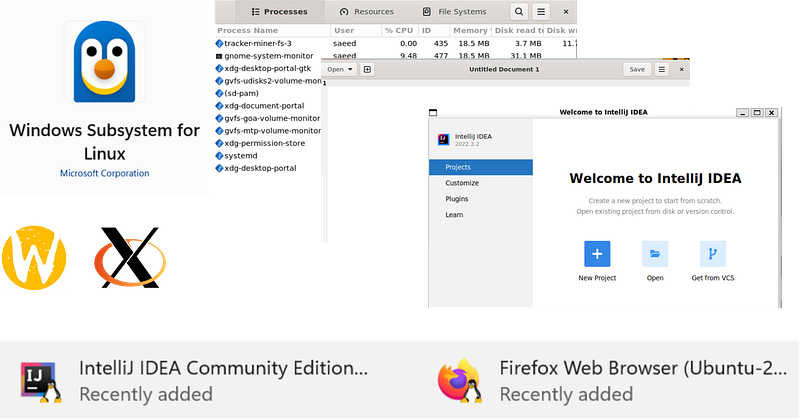
About two years ago, I wrote two articles about running Linux GUI applications on windows 10 on top of the WSL 2. At that time, I was on a project, and I had a Surface Laptop machine I had some trouble with my windows machine, and by moving my entire development environment into a WSL 2 VM, development on a windows machine became more comfortable and faster for me.
In the first article, I described how to Using WSL 2 to develop Java application on Windows , this article showed how to install and configure an X server client (VcXsrv) on Windows 10 and then run IntelliJ Idea inside the WSL 2 and load the GUI using the X server client in the Windows 10.
In the second article, I expanded my first article and showed how to Using WSL 2 to run Linux GUI applications in Windows 10 with a shortcut and made running a Linux GUI program using WSL 2 in windows 10 easier by creating shortcuts and more.
But nowadays, you don't need to do these tricks to run IntelliJ Idea inside the WLS 2 VM and work with the GUI in Windows. Now Windows 10 and 11 support this feature natively!
· Now Windows has WSLg in addition to WSL ∘ How to enable this feature ∘ How to install Linux software ∘ How to install the snap package in WSL 2 ∘ How to run IDEs on the WSL 2 ∘ Performance ∘ Limitation · Conclusion
Now Windows has WSLg in addition to WSL
What is WSLg:
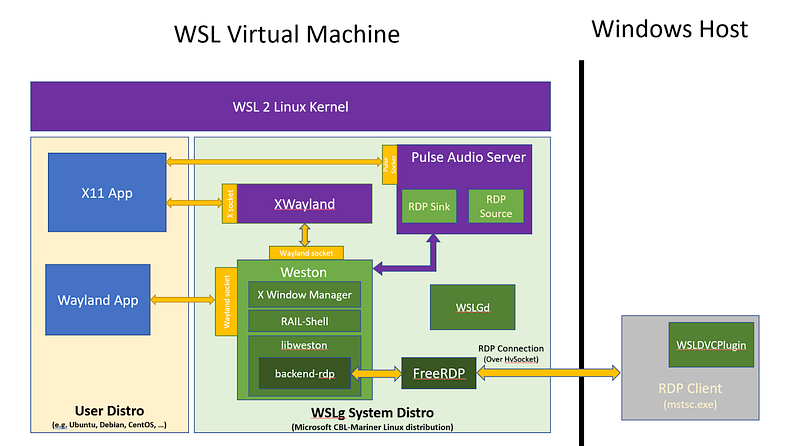
WSLg is short for Windows Subsystem for Linux GUI and the purpose of the project is to enable support for running Linux GUI applications (X11 and Wayland) on Windows in a fully integrated desktop experience.
By existing the WSLg, we don't need to install and run X server on Windows. WSLg supports both X11 and Wayland, which is a plus.
How to enable this feature
After a couple of years since the introduction of WSL 1 and 2, it has become very easy to install and activate on Windows 10 or 11. You need to have Windows 11 or Windows 10 (Build 19044+). I don't think I can describe how to enable this feature better than Microsoft's official doc:
After installing WSL 2 and WSLg and configuring them, you must install a Linux distribution. Run this command to the list of available distributions:
wsl -l -o
The result should be something like this:
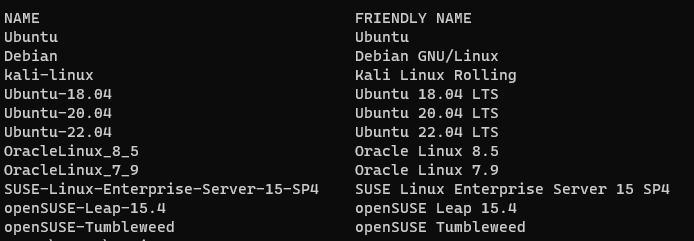
Now choose your distribution and install it:
wsl --install -d Ubuntu-22.04
How to install Linux software
The integration with Linux software is perfect. for example, whatever software you install using apt or snap commands in Ubuntu can be accessible from the Windows start menu.

How to install the snap package in WSL 2
You may notice that when you want to install any snap package get this error:
error: cannot communicate with server: Post http://localhost/v2/snaps/hello-world: dial unix /run/snapd.socket: connect: no such file or directory
To tackle this issue, the Microsoft team did a great job and, by partnering with Canonical, added support for the Systemd for WSL 2.
First, you must enable it by adding these lines to the /etc/wsl.conf file:
[boot]
systemd=true
And then relaunch the WSL 2 using the wsl --shutdown command.
Read this article for more information:
By enabling systemd, In addition to installing snap packages, As a developer, we can install Docker directly inside the WSL 2 VMs instead of installing Docker Desktop for windows and config the WSL 2 vm to use it.
How to run IDEs on the WSL 2
You have two options:
1- Install IDE on windows and connect to WSL 2 VM using the remote development feature. Intellij support remote development using JetBrains Gateway, and VSCode supports this feature through Remote Development extensions.
2- Install IDE inside the WSL 2 VM using your Linux package manager inside the WSL 2 VM and then Run IDE inside the VM and show the GUI in Windows using WSLg.
Either approach has pros and cons I personally prefer to run IDE inside the WSL 2 vm (approach 2) like I used to do because I feel more flexible and faster. I like the first approach when the VM is not on my machine but a remote server.
On my local machine, I prefer the second option. I installed intellij-idea-community using the snap command:
sudo snap install intellij-idea-community --classic
I got this error when I wanted to run the intellij-idea-community for the first time:
CompileCommand: exclude com/intellij/openapi/vfs/impl/FilePartNodeRoot.trieDescend bool exclude = true

Start Failed
Internal error. Please refer to https://jb.gg/ide/critical-startup-errors

java.lang.NoClassDefFoundError: Could not initialize class java.awt.Toolkit
        at java.desktop/java.awt.Color.<clinit>(Color.java:277)
        at com.intellij.ide.ui.laf.IdeaLaf.<clinit>(IdeaLaf.java:24)
        at java.base/java.lang.Class.forName0(Native Method)
        at java.base/java.lang.Class.forName(Class.java:467)
        at com.intellij.idea.StartupUtil$preloadLafClasses$1.invokeSuspend(StartupUtil.kt:579)
        at kotlin.coroutines.jvm.internal.BaseContinuationImpl.resumeWith(ContinuationImpl.kt:33)
        at kotlinx.coroutines.DispatchedTask.run(DispatchedTask.kt:106)
        at kotlinx.coroutines.internal.LimitedDispatcher.run(LimitedDispatcher.kt:42)
        at kotlinx.coroutines.scheduling.TaskImpl.run(Tasks.kt:95)
        at kotlinx.coroutines.scheduling.CoroutineScheduler.runSafely(CoroutineScheduler.kt:570)
        at kotlinx.coroutines.scheduling.CoroutineScheduler$Worker.executeTask(CoroutineScheduler.kt:750)
        at kotlinx.coroutines.scheduling.CoroutineScheduler$Worker.runWorker(CoroutineScheduler.kt:677)
        at kotlinx.coroutines.scheduling.CoroutineScheduler$Worker.run(CoroutineScheduler.kt:664)
        Suppressed: java.lang.UnsatisfiedLinkError: /snap/intellij-idea-community/409/jbr/lib/libawt_xawt.so: libXrender.so.1: cannot open shared object file: No such file or directory
                at java.base/jdk.internal.loader.NativeLibraries.load(Native Method)
                at java.base/jdk.internal.loader.NativeLibraries$NativeLibraryImpl.open(NativeLibraries.java:388)
                at java.base/jdk.internal.loader.NativeLibraries.loadLibrary(NativeLibraries.java:232)
                at java.base/jdk.internal.loader.NativeLibraries.loadLibrary(NativeLibraries.java:174)
                at java.base/java.lang.ClassLoader.loadLibrary(ClassLoader.java:2389)
                at java.base/java.lang.Runtime.load0(Runtime.java:755)
                at java.base/java.lang.System.load(System.java:1953)
                at java.base/jdk.internal.loader.NativeLibraries.load(Native Method)
                at java.base/jdk.internal.loader.NativeLibraries$NativeLibraryImpl.open(NativeLibraries.java:388)
                at java.base/jdk.internal.loader.NativeLibraries.loadLibrary(NativeLibraries.java:232)
                at java.base/jdk.internal.loader.NativeLibraries.loadLibrary(NativeLibraries.java:174)
                at java.base/jdk.internal.loader.NativeLibraries.findFromPaths(NativeLibraries.java:315)
                at java.base/jdk.internal.loader.NativeLibraries.loadLibrary(NativeLibraries.java:285)
                at java.base/java.lang.ClassLoader.loadLibrary(ClassLoader.java:2398)
                at java.base/java.lang.Runtime.loadLibrary0(Runtime.java:818)
                at java.base/java.lang.System.loadLibrary(System.java:1989)
                at java.desktop/java.awt.Toolkit$2.run(Toolkit.java:1388)
                at java.desktop/java.awt.Toolkit$2.run(Toolkit.java:1386)
                at java.base/java.security.AccessController.doPrivileged(AccessController.java:318)
                at java.desktop/java.awt.Toolkit.loadLibraries(Toolkit.java:1385)
                at java.desktop/java.awt.Toolkit.initStatic(Toolkit.java:1428)
                at java.desktop/java.awt.Toolkit.<clinit>(Toolkit.java:1397)
                at com.intellij.idea.StartupUtil$initAwtToolkit$1$1.invokeSuspend(StartupUtil.kt:485)
                at kotlin.coroutines.jvm.internal.BaseContinuationImpl.resumeWith(ContinuationImpl.kt:33)
                at kotlinx.coroutines.DispatchedTask.run(DispatchedTask.kt:106)
                ... 4 more

-----
Your JRE: 17.0.5+1-b653.25 amd64 (JetBrains s.r.o.)
/snap/intellij-idea-community/409/jbr

Also, a UI exception occurred on an attempt to show the above message
java.lang.NoClassDefFoundError: Could not initialize class java.awt.Toolkit
        at java.desktop/java.awt.Component.<clinit>(Component.java:632)
        at com.intellij.idea.StartupErrorReporter.showMessage(StartupErrorReporter.java:85)
        at com.intellij.idea.StartupErrorReporter.showMessage(StartupErrorReporter.java:39)
        at com.intellij.idea.Main.main(Main.kt:65)
After installing gnome-software, like gedit or gnome-system-monitor that has some dependencies on X11-related packages, everything is fixed!
Performance
Performance is acceptable, especially if you store your files inside the WSL 2 VM. Memory management is good, Windows manages WSL VMs memory for you, and you don't need to specify memory for each WSL instance (you can specify the maximum memory).
In my machine, Ubuntu 22.04 used about 540 MB of RAM, and after enabling systemd it increased to 860 MB. After installing and running the first application, the RAM usage increased to about 1.4 GB even after closing that app.
Limitation
Snap window management keyboard shortcuts in Windows 11 don’t work for Linux application windows. You need to manually align this kind of window (for example, to fill half of the screen, you can’t use a keyboard shortcut or the windows snapping feature using a mouse).
Another issue for me was the application font size. You need to increase the font in most cases when you run a Linux application like firefox or … everything is small.
Conclusion
I believe that WSL 2 is a game-changer feature for Microsoft to attract more developers to the Windows operating system. It seems Microsoft also believes in WSL 2 and regularly improves it and adds new features. There are more interesting features in WSL 2 for developers, like Get started with databases on WSL or Set up GPU acceleration (NVIDIA CUDA/DirectML) .
You can follow me for upcoming stories:
Read my short technical posts on Twitter.


